

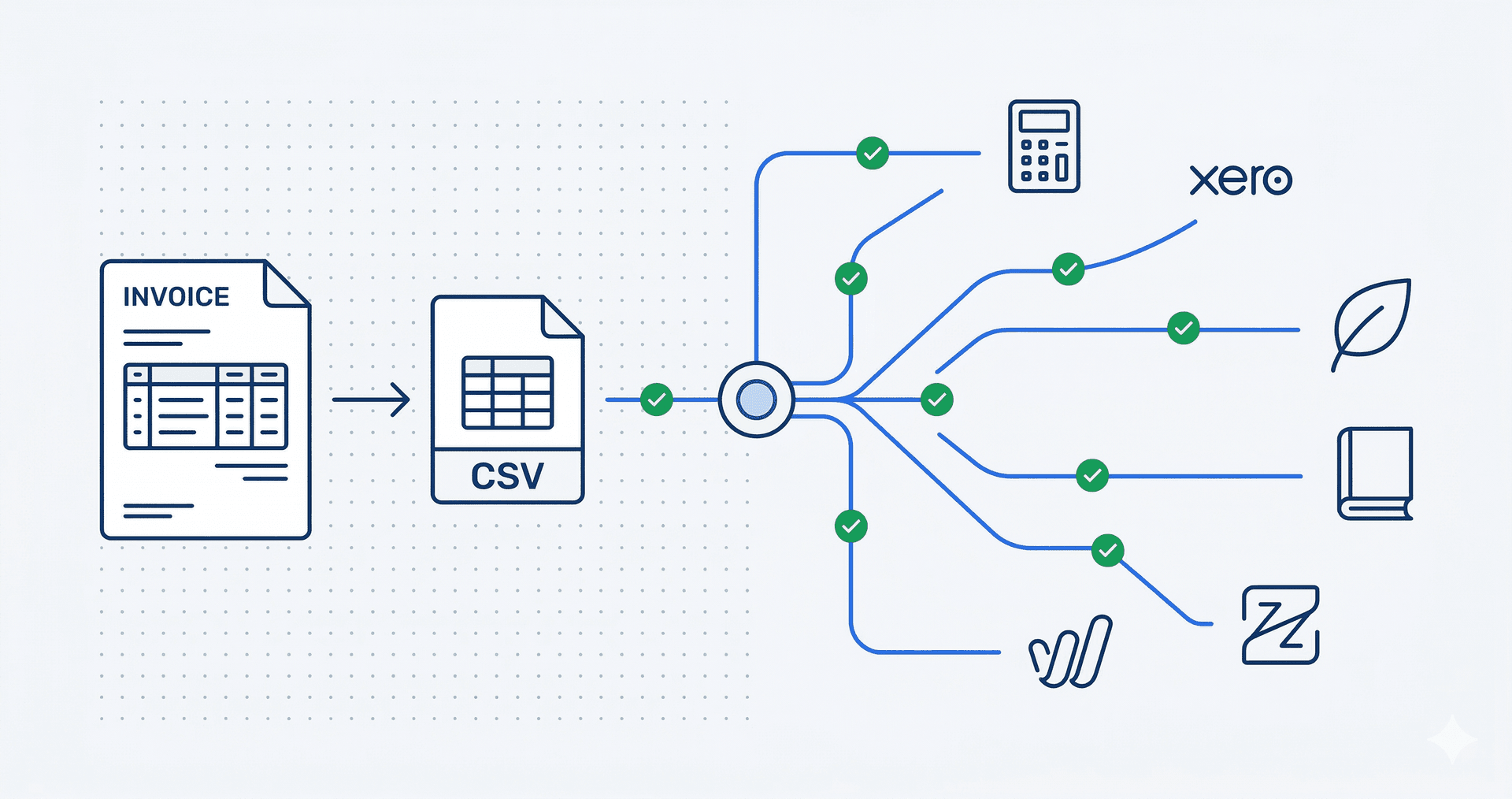
Quick Answer: Convert PDF invoices to CSV for any accounting software in 3 steps: (1) Upload your invoice to TRO Matcher—PDF, image, Excel, or Word, (2) AI extracts vendor name, line items, amounts, and dates in 60 seconds with confidence scoring, (3) Export as CSV and import into QuickBooks, Xero, Sage, FreshBooks, Wave, Zoho Books, or any software that accepts CSV imports. FREE tier includes 10 extractions/month.
Key Takeaways
- CSV is the universal import format — works with 95%+ of accounting tools
- AI extraction: 60 seconds vs 15-20 minutes manual data entry
- Compatible: QuickBooks, Xero, Sage, FreshBooks, Wave, Zoho Books
- FREE tier: 10 extractions/month, no credit card required
- 8 file formats supported: PDF, PNG, JPEG, Excel, Word, and more
Why CSV is the Universal Format
Every major accounting software supports CSV import. It's the lowest-common-denominator format that works everywhere:
| Software | CSV Import | Direct Integration |
|---|---|---|
| QuickBooks Online | Yes | Limited apps |
| QuickBooks Desktop | Yes | IIF files |
| Xero | Yes | Xero Hub |
| Sage 50/Intacct | Yes | API required |
| FreshBooks | Yes | Limited |
| Wave | Yes | None |
| Zoho Books | Yes | Limited |
| NetSuite | Yes | SuiteScript |
| Microsoft Dynamics | Yes | API required |
If you're using any accounting software, CSV export from TRO Matcher will work. No vendor lock-in, no proprietary formats, no API integration required.
The Manual Entry Problem
Before CSV import, most businesses faced this workflow:
- Receive invoice (PDF, email, paper)
- Open accounting software
- Type vendor name, invoice number, date
- Type each line item manually
- Verify totals match
- Fix typos and formatting errors
- Repeat for every invoice
The cost:
- 15-20 minutes per invoice
- 1-4% data entry error rate
- $12-20 per invoice (AP benchmarks)
- Staff frustration and turnover
For 100 invoices monthly, that's 25-33 hours of manual data entry—skilled labor that could go toward vendor negotiations or financial analysis.
TRO Matcher CSV Export Workflow
Step 1: Upload Your Invoice
Log into TRO Matcher and click Extract in the dashboard.
Supported formats (8 total):
- PDF documents (native or scanned)
- Images: PNG, JPEG, WebP, HEIC (including iPhone photos)
- Spreadsheets: Excel (XLSX), CSV
- Documents: Word (DOCX)
Drag and drop or click to browse. TRO Matcher auto-detects the format.
Step 2: Review AI-Extracted Data
Within 60 seconds, Google Gemini AI extracts and displays:
| Field | Example | Confidence |
|---|---|---|
| Vendor | Acme Supplies Ltd | 98% |
| Invoice Number | INV-2026-0142 | 99% |
| Invoice Date | 2026-04-01 | 97% |
| Due Date | 2026-05-01 | 96% |
| Line Item 1 | Office Paper (Box) | 95% |
| Quantity | 10 | 99% |
| Unit Price | $24.99 | 98% |
| Line Item Total | $249.90 | 99% |
| Tax | $20.00 | 97% |
| Invoice Total | $269.90 | 99% |
Confidence scores guide your review:
- 95%+ (green): Auto-accept
- 80-94% (yellow): Quick glance
- Below 80% (red): Verify against source
Edit any field directly in the interface.
Step 3: Export to CSV
Click Export > CSV.
TRO Matcher generates a CSV file with standardized columns:
Vendor,InvoiceNumber,InvoiceDate,DueDate,Description,Quantity,UnitPrice,Amount,Tax,Total,Currency
"Acme Supplies Ltd","INV-2026-0142","2026-04-01","2026-05-01","Office Paper (Box)",10,24.99,249.90,20.00,269.90,"USD"
Step 4: Import to Your Accounting Software
Each software has a slightly different import process. See the software-specific sections below.
Software Compatibility Matrix
| Software | Import Path | Date Format | Notes |
|---|---|---|---|
| QuickBooks Online | Settings > Import Data | MM/DD/YYYY | Map to Bills |
| QuickBooks Desktop | File > Utilities > Import | MM/DD/YYYY | Excel/CSV files |
| Xero | Business > Bills to Pay > Import | YYYY-MM-DD | ISO format preferred |
| Sage 50 | File > Import | MM/DD/YYYY | Vendor master required |
| FreshBooks | Expenses > Import | YYYY-MM-DD | Expenses or bills |
| Wave | Accounting > Transactions > Import | YYYY-MM-DD | Free software |
| Zoho Books | Settings > Import > Bills | YYYY-MM-DD | Module-specific |
TRO Matcher exports dates in ISO format (YYYY-MM-DD) by default, which most software accepts. You can adjust in settings if needed.
Field Mapping Guide
Different accounting software expects different column names. Here's how to map TRO Matcher exports:
QuickBooks (Online and Desktop)
| TRO Matcher | QuickBooks Field |
|---|---|
| Vendor | Vendor Name |
| InvoiceNumber | Ref Number |
| InvoiceDate | Date |
| DueDate | Due Date |
| Description | Item Description |
| Quantity | Quantity |
| UnitPrice | Rate |
| Amount | Amount |
| Tax | Sales Tax |
| Total | Total |
Xero
| TRO Matcher | Xero Field |
|---|---|
| Vendor | ContactName |
| InvoiceNumber | InvoiceNumber |
| InvoiceDate | InvoiceDate |
| DueDate | DueDate |
| Description | Description |
| Quantity | Quantity |
| UnitPrice | UnitAmount |
| Amount | LineAmount |
| Tax | TaxAmount |
| Currency | CurrencyCode |
Sage 50
| TRO Matcher | Sage Field |
|---|---|
| Vendor | Vendor ID |
| InvoiceNumber | Reference |
| InvoiceDate | Date |
| DueDate | Due Date |
| Description | Description |
| Quantity | Quantity |
| UnitPrice | Unit Cost |
| Amount | Amount |
| Tax | Tax Amount |
FreshBooks
| TRO Matcher | FreshBooks Field |
|---|---|
| Vendor | Vendor |
| InvoiceNumber | Bill Number |
| InvoiceDate | Bill Date |
| DueDate | Due Date |
| Description | Description |
| Amount | Amount |
| Tax | Tax |
| Total | Total |
Most software auto-maps columns during import if the column names match. Rename columns in Excel if needed before importing.
Data Validation Checklist
Before importing to your accounting software, verify:
Required Fields
- Vendor name matches existing vendor record (or will create new)
- Invoice number is unique (no duplicates)
- Invoice date is valid (YYYY-MM-DD or MM/DD/YYYY)
- At least one line item with amount
Number Formatting
- No currency symbols in amount fields ($, €, £)
- Decimal separator matches locale (US: 249.90, EU: 249,90)
- Negative amounts for credits (if applicable)
Date Formatting
- Consistent format throughout (don't mix formats)
- ISO format (YYYY-MM-DD) works with most software
- US format (MM/DD/YYYY) for QuickBooks Desktop
Text Fields
- No special characters in vendor names that break CSV
- Descriptions don't exceed software's character limit
- Commas in descriptions are quoted properly
TRO Matcher handles most of this automatically. The export is clean, properly quoted, and formatted for direct import.
Common Errors by Software
QuickBooks
- "Vendor not found": Create vendor in QuickBooks first or let import create new
- "Date format invalid": Use MM/DD/YYYY for Desktop, QuickBooks Online is flexible
- "Duplicate reference number": Invoice already exists; check for prior import
Xero
- "Contact not found": Enable "Create new contacts" during import
- "AccountCode required": Assign during import or set default expense account
- "Currency mismatch": Enable multi-currency if importing non-base currency invoices
Sage
- "Vendor ID required": Sage needs vendor records created first
- "Invalid date": Sage is strict about date formats; ensure MM/DD/YYYY
- "Posting period closed": Check that invoice date falls in open period
FreshBooks
- "Category required": Map line items to expense categories during import
- "Client/Vendor not found": Create vendor record first for bills
General Tips
- Start with a small batch (5-10 invoices) to verify mapping
- Keep the original CSV as backup
- Check totals in accounting software match TRO Matcher export
- Review any warnings or skipped records after import
Time and Cost Savings
Compared to manual entry:
| Metric | Manual Entry | TRO Matcher → CSV |
|---|---|---|
| Time per invoice | 15-20 min | 2-3 min total |
| Accuracy | 96-99% | Up to 99.9% |
| Error detection | Manual review | Confidence scores |
| Format handling | Retyping | 8 formats auto-detected |
| Monthly (100 invoices) | 25-33 hours | 3-5 hours |
ROI for 100 invoices/month:
- Time saved: 20-28 hours
- At $30/hour: $600-840/month value
- TRO Matcher STARTER: $19/month
- ROI: 31-44× subscription cost
Frequently Asked Questions
What's the best format to export invoice data?
CSV is the universal format for accounting software imports. It works with QuickBooks, Xero, Sage, FreshBooks, Wave, Zoho Books, and most other accounting platforms.
Can I import invoices to any accounting software?
Yes, if your accounting software supports CSV import. TRO Matcher exports to a standardized CSV format compatible with QuickBooks, Xero, Sage, FreshBooks, Wave, and Zoho Books.
How do I convert a PDF invoice to CSV?
Upload the PDF to TRO Matcher. Google Gemini AI extracts vendor, line items, amounts, and dates in 60 seconds. Click Export > CSV and import to your accounting software.
What fields should my invoice CSV have?
Essential fields: InvoiceNumber, Date, Vendor, Description, Quantity, UnitPrice, Total. TRO Matcher extracts all these fields automatically with confidence scores.
Is there a free invoice to CSV converter?
Yes. TRO Matcher offers a FREE tier with 10 extractions per month. Upload invoices in any format, AI extracts the data, export to CSV—no credit card required.
How accurate is automated invoice extraction?
TRO Matcher achieves up to 99.9% accuracy using Google Gemini AI. Each extracted field includes a confidence score so you know which fields to verify.
Convert Your First Invoice Free
Stop manually typing invoice data. TRO Matcher uses Google Gemini AI to extract every field in under 60 seconds with confidence scoring for smart verification.
What you get:
- Up to 99.9% extraction accuracy
- 60-second processing time
- Confidence scores for every field
- 8 file formats supported
- Universal CSV export
Try Free → — Upload your first invoice in 30 seconds
Related Resources
- How AI Invoice Extraction Works — Technical deep-dive on AI vs OCR
- Import Invoices to QuickBooks — QuickBooks-specific workflow
- Import Invoices to Xero — Xero-specific workflow
- Export Reports Feature — PDF and CSV export capabilities