
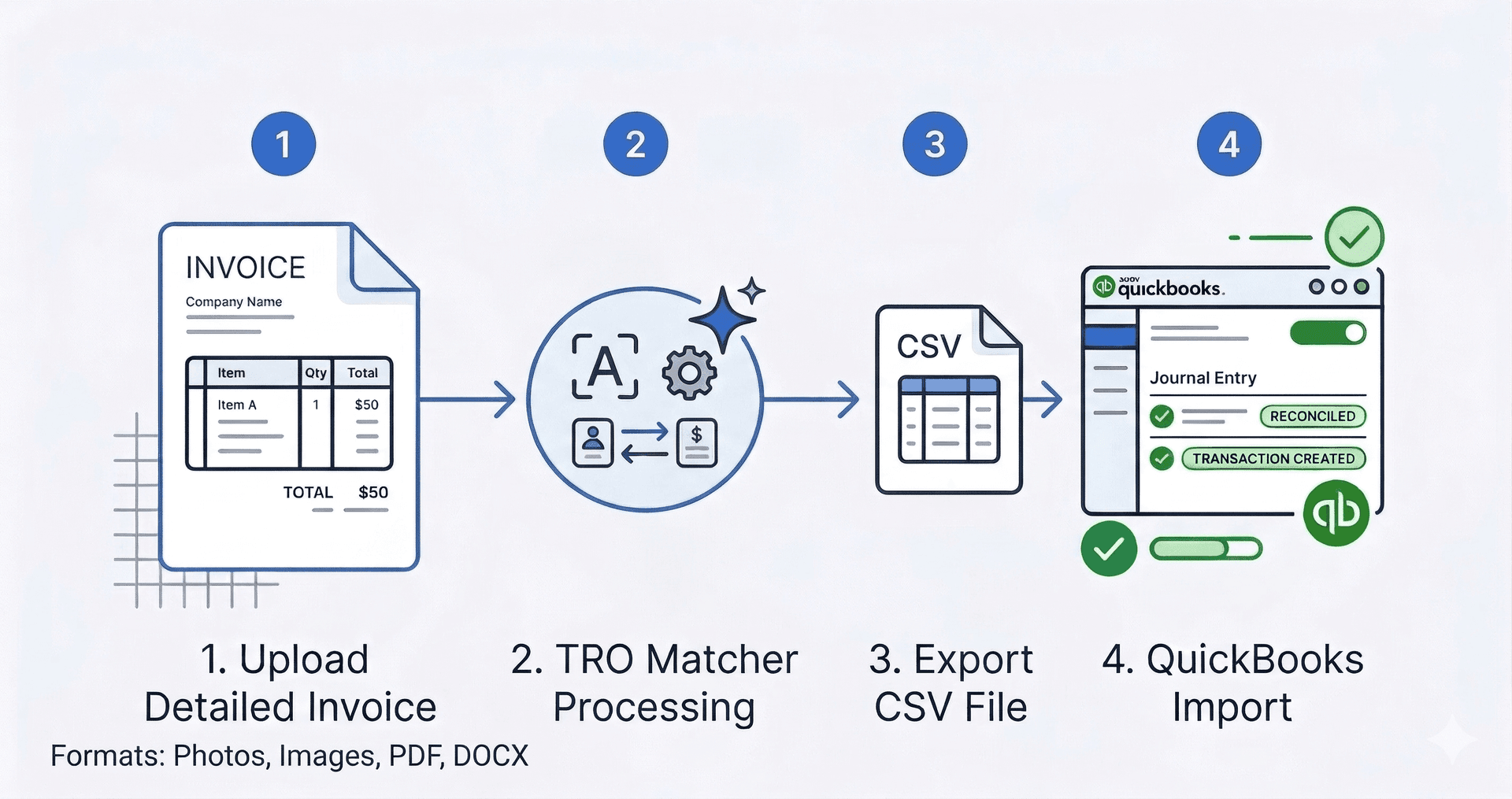
Quick Answer: Import invoices to QuickBooks in 3 steps: (1) Upload your invoice to TRO Matcher—PDF, image, Excel, or Word, (2) AI extracts vendor name, line items, amounts, and dates in 60 seconds with confidence scoring, (3) Export as CSV and import into QuickBooks via File > Utilities > Import. The entire process takes under 5 minutes versus 15-20 minutes per invoice for manual entry. FREE tier includes 10 extractions/month.
Key Takeaways
- Manual invoice entry costs $12-20 per invoice with 1-4% error rate
- AI extraction completes in 60 seconds vs 15-20 minutes manual
- FREE tier: 10 extractions/month, no credit card required
- QuickBooks Online + Desktop all supported via CSV import
- 100 invoices = 25+ hours saved monthly
The Problem: Manual Invoice Entry
If you're manually typing invoice data into QuickBooks, you already know the pain:
| Manual Entry Reality | Impact |
|---|---|
| 15-20 minutes per invoice | 100 invoices = 25-33 hours/month |
| 1-4% data entry error rate | Payment disputes, audit findings, duplicate payments |
| $12-20 cost per invoice | AP benchmarks (IOFM/APQC) |
| Inconsistent vendor names | Reconciliation headaches |
| No time for strategic work | Stuck in data entry instead of analysis |
For a business processing 100 invoices monthly, manual entry consumes 25+ hours of skilled labor that could go toward vendor negotiations, cash flow optimization, or financial analysis.
Why AI Extraction Changes Everything
Traditional OCR reads characters but doesn't understand context. A vendor address might get confused with invoice details. Line items might merge together. You still end up fixing errors.
AI extraction using large language models is different:
- Understands document structure — knows "Invoice #12345" is an invoice number
- Works with any layout — no templates or configuration needed
- Provides confidence scores — shows which fields are certain vs uncertain
- Handles 8 formats — PDF, PNG, JPEG, WebP, HEIC, CSV, DOCX, XLSX
TRO Matcher uses Google Gemini AI to achieve up to 99.9% accuracy on clean documents, with processing in under 60 seconds.
Method Comparison: Manual vs TRO Matcher
| Metric | Manual Entry | TRO Matcher |
|---|---|---|
| Time per invoice | 15-20 minutes | 60 seconds |
| Accuracy | 96-99% (human error) | Up to 99.9% |
| Cost per invoice | $12-20 | $0.49-2.36 |
| Error detection | Spot-checking | Confidence scores |
| Format handling | Retyping required | 8 formats auto-detected |
| Learning curve | Training required | Upload and go |
| Availability | Business hours | 24/7 |
The confidence scoring is what makes AI extraction practical. Instead of verifying every field, you focus only on the 5-10% flagged for review.
Step-by-Step: TRO Matcher → QuickBooks
Step 1: Upload Your Invoice
Log into TRO Matcher and click Extract in the dashboard.
Supported formats:
- PDF documents (native or scanned)
- Images (PNG, JPEG, WebP, HEIC — including iPhone photos)
- Spreadsheets (Excel, CSV)
- Word documents (DOCX)
Drag and drop your file or click to browse. No file conversion needed.
Step 2: Review AI-Extracted Data
Within 60 seconds, TRO Matcher displays the extracted data alongside your original document.
Fields extracted:
- Vendor name and address
- Invoice number and date
- Due date and payment terms
- Line items with descriptions
- Quantities and unit prices
- Subtotal, tax, and total
- Currency (170+ supported)
Confidence scores:
- 95%+ (green): Auto-accept these fields
- 80-94% (yellow): Quick glance recommended
- Below 80% (red): Verify against source document
Edit any field directly if needed. Most invoices require zero corrections.
Step 3: Export to CSV
Click Export and select CSV format.
TRO Matcher generates a CSV file with these columns:
- Vendor
- InvoiceNumber
- InvoiceDate
- DueDate
- Description
- Quantity
- UnitPrice
- Amount
- Tax
- Total
This format imports directly into QuickBooks without reformatting.
Step 4: Import to QuickBooks
QuickBooks Online:
- Go to Settings (gear icon) > Import Data
- Select Bills or Invoices
- Click Upload and select your CSV file
- Map columns (usually auto-detected)
- Click Import
QuickBooks Desktop:
- Go to File > Utilities > Import > Excel Files
- Select your CSV file
- Follow the import wizard
- Review and confirm the import
The entire workflow—from invoice upload to QuickBooks import—takes under 5 minutes.
QuickBooks CSV Requirements
QuickBooks expects specific fields. Here's how TRO Matcher maps extracted data:
| QuickBooks Field | TRO Matcher Export | Notes |
|---|---|---|
| Vendor | Vendor | Company name |
| Ref Number | InvoiceNumber | Unique identifier |
| Date | InvoiceDate | MM/DD/YYYY format |
| Due Date | DueDate | MM/DD/YYYY format |
| Item Description | Description | Line item text |
| Quantity | Quantity | Numeric |
| Rate | UnitPrice | Currency amount |
| Amount | Amount | Quantity × UnitPrice |
TRO Matcher automatically formats dates to MM/DD/YYYY (US) or DD/MM/YYYY (UK) based on your settings.
Common Errors and Solutions
Date Format Mismatch
Problem: QuickBooks rejects import due to date formatting.
Solution: Check your QuickBooks date format settings (Company > My Preferences) and ensure TRO Matcher export matches. US format is MM/DD/YYYY; UK format is DD/MM/YYYY.
Vendor Name Not Found
Problem: QuickBooks can't match the vendor to existing records.
Solution: Either create the vendor in QuickBooks first, or use QuickBooks' "Add new" option during import. Consistent vendor naming in TRO Matcher helps—the AI maintains the exact vendor name from the invoice.
Currency Issues
Problem: Multi-currency invoices cause import errors.
Solution: TRO Matcher supports 170+ currencies with ECB conversion. Export in your QuickBooks base currency, or ensure QuickBooks multi-currency is enabled for the vendor's currency.
Duplicate Invoice Warning
Problem: QuickBooks warns of potential duplicate.
Solution: TRO Matcher preserves the exact invoice number from the source document. Check if this invoice was already imported. QuickBooks' duplicate detection is a feature, not a bug—it prevents double payments.
Time and Cost Savings
Here's the math for a business processing 100 invoices monthly:
| Metric | Manual Entry | TRO Matcher | Savings |
|---|---|---|---|
| Time per invoice | 17.5 min average | 3 min total | 14.5 min |
| Monthly time | 29 hours | 5 hours | 24 hours |
| Annual time | 348 hours | 60 hours | 288 hours |
| Error rate | 2.5% average | 0.1% | 96% reduction |
| Monthly cost (@ $30/hr) | $870 | $150 + subscription | $670+ |
For businesses on the FREE tier (10 invoices/month), the savings are immediate with zero subscription cost.
ROI calculation for STARTER plan ($19/month):
- 100 invoices × 14.5 min saved = 24 hours saved
- 24 hours × $30/hour = $720 monthly value
- ROI: 37× the subscription cost
Frequently Asked Questions
Can I import vendor bills to QuickBooks Online?
Yes. TRO Matcher extracts invoice data with AI and exports to CSV format that imports directly into QuickBooks Online via File > Utilities > Import. The entire process takes under 5 minutes.
What QuickBooks versions support CSV import?
QuickBooks Online and QuickBooks Desktop (Pro, Premier, Enterprise) all support CSV import. TRO Matcher exports are compatible with all versions.
How accurate is AI invoice extraction?
TRO Matcher achieves up to 99.9% accuracy using Google Gemini AI. Every extracted field includes a confidence score, so you know exactly which fields need verification.
Is there a free way to import invoices to QuickBooks?
Yes. TRO Matcher offers a FREE tier with 10 extractions per month, no credit card required. Upload invoices, review AI-extracted data, export to CSV, and import to QuickBooks.
How long does the import process take?
AI extraction completes in 60 seconds. Reviewing extracted data takes 1-2 minutes. QuickBooks import takes another 1-2 minutes. Total: under 5 minutes versus 15-20 minutes for manual entry.
Can I import invoices in multiple currencies?
Yes. TRO Matcher supports 170+ currencies with automatic ECB exchange rate conversion. Export to CSV with original currency or converted amounts for QuickBooks import.
Import Your First Invoice Free
Stop manually typing invoice data into QuickBooks. TRO Matcher uses Google Gemini AI to extract every field in under 60 seconds with confidence scoring for smart verification.
What you get:
- Up to 99.9% extraction accuracy
- 60-second processing time
- Confidence scores for every field
- 8 file formats supported
- One-click CSV export to QuickBooks
Try Free → — Upload your first invoice in 30 seconds
Related Resources
- How AI Invoice Extraction Works — Technical deep-dive on AI vs OCR
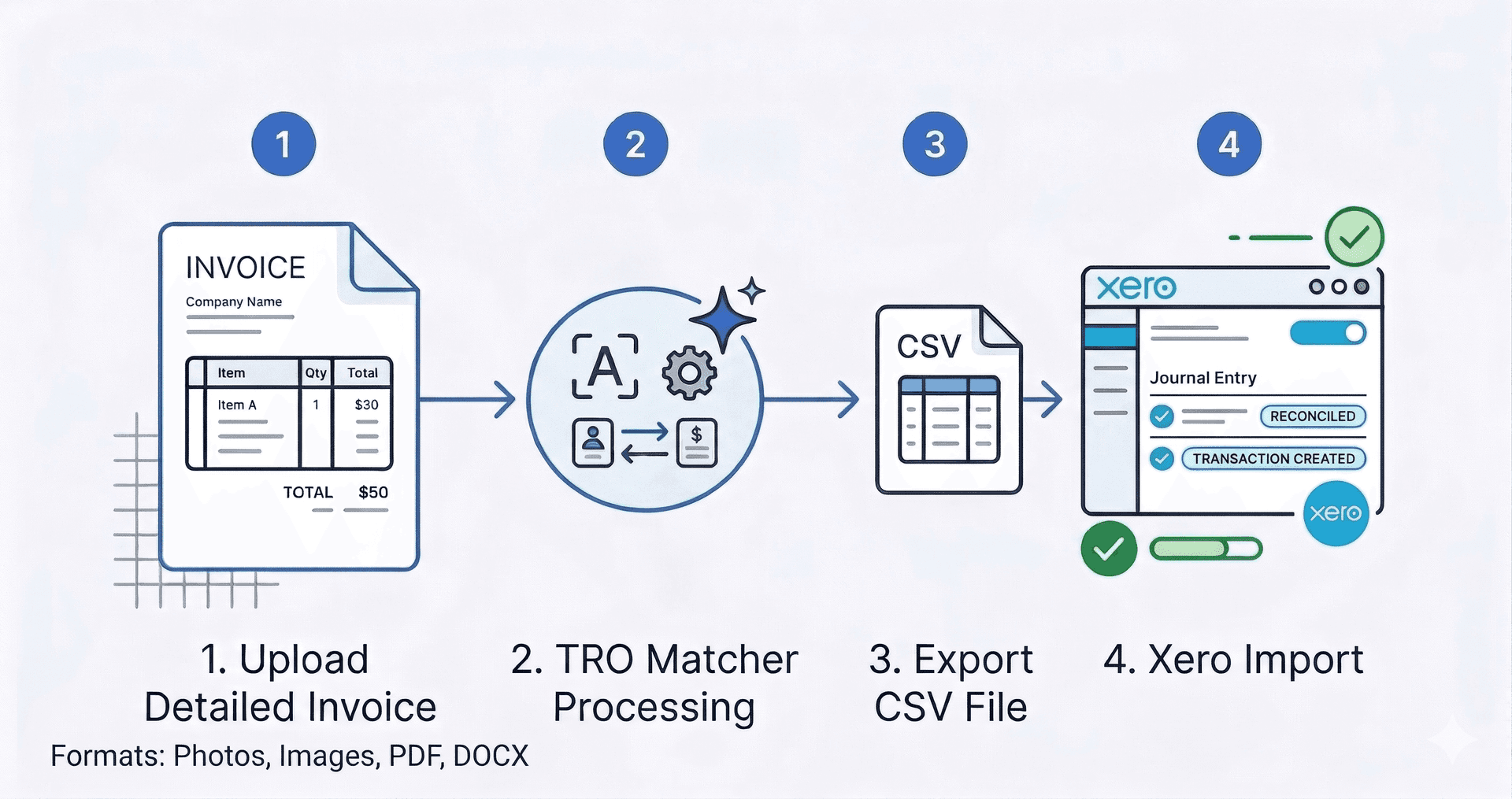
- Import Invoices to Xero — Similar workflow for Xero users
- CSV Import to Any Accounting Software — Universal CSV export guide
- QuickBooks CSV Import Guide (opens in new tab) — Official Intuit documentation