
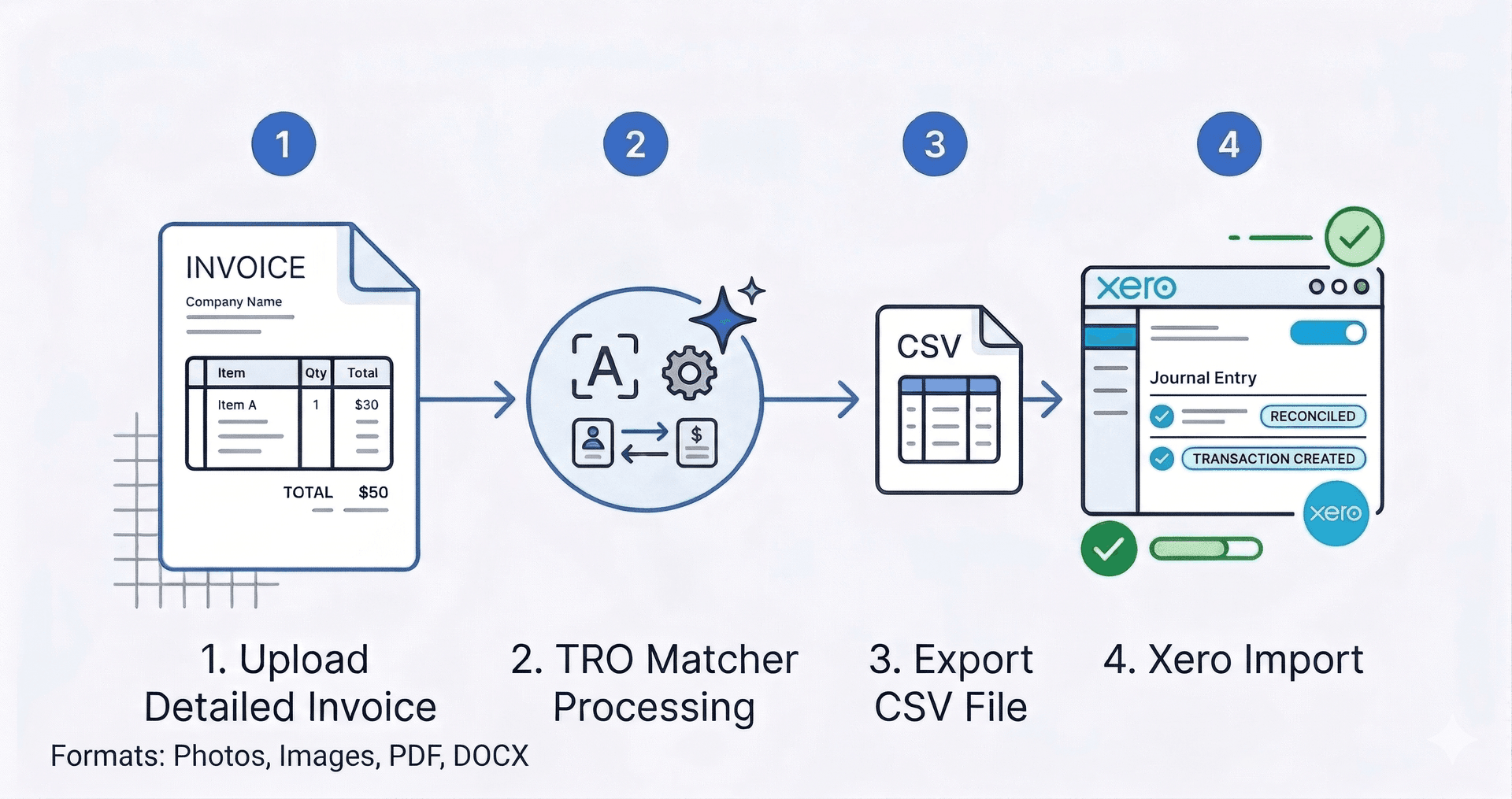
Quick Answer: Import invoices to Xero in 3 steps: (1) Upload your invoice to TRO Matcher—PDF, image, Excel, or Word, (2) AI extracts vendor name, line items, amounts, and dates in 60 seconds with confidence scoring, (3) Export as CSV and import into Xero via Business > Bills to Pay > Import. The entire process takes under 5 minutes versus 15-20 minutes per invoice for manual entry. FREE tier includes 10 extractions/month.
Key Takeaways
- Xero has 4.2M+ subscribers globally — most import invoices manually
- AI extraction: 60 seconds vs 15-20 minutes manual entry
- 170+ currencies supported with automatic ECB conversion
- FREE tier: 10 extractions/month, no credit card required
- Xero CSV import supports bulk upload for efficiency
The Problem: Manual Invoice Entry in Xero
Xero is powerful accounting software, but getting invoice data into it still requires manual work for most users:
| Manual Entry Reality | Impact |
|---|---|
| 15-20 minutes per invoice | 100 invoices = 25-33 hours/month |
| 1-4% data entry error rate | Payment disputes, reconciliation issues |
| $12-20 cost per invoice | AP benchmarks (IOFM/APQC) |
| Copy-paste from PDF | Formatting issues, missed fields |
| Xero Hub receipts limited | PDFs from email need manual entry |
Xero's built-in document capture works for simple receipts, but supplier invoices with line items, purchase orders, and complex layouts still need human attention.
Why AI Extraction is Better Than Xero Hub
Xero Hub (formerly Receipt Bank) handles simple receipts and expenses. For supplier invoices with multiple line items, quantities, and structured data, AI extraction is more powerful:
| Feature | Xero Hub | TRO Matcher |
|---|---|---|
| Best for | Receipts, expenses | Supplier invoices |
| Line item extraction | Limited | Full (description, qty, price) |
| Multi-line invoices | Basic | Complete |
| Confidence scoring | No | Yes (per field) |
| Vendor comparison | No | Yes (up to 5 invoices) |
| File formats | PDF, images | 8 formats incl. Excel |
| Processing time | Minutes | 60 seconds |
TRO Matcher uses Google Gemini AI to achieve up to 99.9% accuracy on clean documents—with confidence scores showing which fields need review.
Xero Import Methods Compared
You have three options for getting invoice data into Xero:
1. Manual Entry
Type everything directly into Xero's Bills interface.
Pros: No setup required Cons: 15-20 min/invoice, 1-4% error rate, tedious
2. Xero Marketplace Apps
Use Hubdoc, Dext, or similar apps that integrate with Xero.
Pros: Direct Xero integration Cons: Monthly fees ($20-50+), limited line item extraction, app lock-in
3. AI Extraction + CSV Import (TRO Matcher)
Extract data with AI, export CSV, import to Xero.
Pros: 60-second extraction, full line items, vendor comparison, FREE tier Cons: Two-step process (export then import)
For businesses comparing vendor quotes and needing detailed line item data, option 3 provides the best combination of accuracy and cost.
Step-by-Step: TRO Matcher → Xero
Step 1: Upload Your Invoice
Log into TRO Matcher and click Extract in the dashboard.
Supported formats:
- PDF documents (native or scanned)
- Images (PNG, JPEG, WebP, HEIC — including iPhone photos)
- Spreadsheets (Excel, CSV)
- Word documents (DOCX)
Drag and drop your file or click to browse. TRO Matcher auto-detects the format.
Step 2: Review AI-Extracted Data
Within 60 seconds, TRO Matcher displays extracted data alongside your original document.
Fields extracted:
- Vendor name (ContactName for Xero)
- Invoice number and date
- Due date and payment terms
- Line items with descriptions
- Quantities and unit prices
- Subtotal, tax, and total
- Currency (170+ supported)
Confidence scores:
- 95%+ (green): Auto-accept these fields
- 80-94% (yellow): Quick glance recommended
- Below 80% (red): Verify against source document
Edit any field directly if needed. The AI maintains consistent vendor naming across invoices.
Step 3: Export to CSV
Click Export and select CSV format.
TRO Matcher generates a CSV file formatted for Xero's import requirements:
- ContactName
- InvoiceNumber
- InvoiceDate
- DueDate
- Description
- Quantity
- UnitAmount
- AccountCode (if mapped)
- TaxType
- Total
Step 4: Import to Xero
- Log into Xero
- Go to Business > Bills to Pay
- Click Import in the top right
- Select your CSV file
- Map columns to Xero fields (usually auto-detected)
- Click Import
- Review imported bills and approve
The entire workflow—from invoice upload to Xero import—takes under 5 minutes.
Xero CSV Field Requirements
Xero expects specific field names in CSV imports. Here's how TRO Matcher maps data:
| Xero Field | TRO Matcher Export | Required | Notes |
|---|---|---|---|
| ContactName | Vendor | Yes | Must match existing Xero contact or create new |
| InvoiceNumber | InvoiceNumber | Yes | Unique reference |
| InvoiceDate | InvoiceDate | Yes | YYYY-MM-DD format |
| DueDate | DueDate | No | YYYY-MM-DD format |
| Description | Description | Yes | Line item text |
| Quantity | Quantity | No | Defaults to 1 |
| UnitAmount | UnitPrice | Yes | Currency amount |
| AccountCode | (unmapped) | No | Assign in Xero if needed |
| TaxType | Tax | No | TAX, NONE, or specific code |
| CurrencyCode | Currency | No | Required for multi-currency |
TRO Matcher formats dates as YYYY-MM-DD (ISO 8601), which Xero prefers for imports.
Multi-Currency Handling
Xero supports multi-currency transactions, and TRO Matcher makes it seamless:
TRO Matcher capabilities:
- Detects currency from invoice (170+ supported)
- Converts using ECB exchange rates (updated daily)
- Exports with CurrencyCode field for Xero
Xero requirements:
- Multi-currency must be enabled in Organization Settings
- Currency must be added to your organization
- Contact must have the currency assigned
When exporting from TRO Matcher, you can either:
- Keep original currency (Xero handles conversion)
- Convert to your base currency before export
For international suppliers, keeping original currency maintains accuracy for payment reconciliation.
Common Errors and Solutions
Contact Not Found
Problem: Xero rejects import because ContactName doesn't match existing contact.
Solution: Either:
- Create the contact in Xero first (Contacts > All Contacts > Add Contact)
- Let Xero create a new contact during import (select "Create new contacts")
TRO Matcher preserves exact vendor names from invoices for consistency.
Date Format Issues
Problem: Xero doesn't recognize the date format.
Solution: TRO Matcher exports dates in YYYY-MM-DD format, which Xero accepts universally. If you're editing the CSV manually, ensure dates stay in this format.
AccountCode Errors
Problem: Xero requires account codes but they're not in the export.
Solution: TRO Matcher doesn't map account codes automatically (they depend on your Chart of Accounts). During Xero import, map line items to the appropriate expense account, or set a default account for unmapped items.
Tax Type Mismatch
Problem: Tax codes in export don't match Xero's tax types.
Solution: Xero tax types vary by region (UK: 20% VAT, NO VAT; US: TAX, NONE). During import, map the TaxType column to your Xero tax rates.
Time and Cost Savings
Here's the math for a business processing 100 invoices monthly:
| Metric | Manual Entry | TRO Matcher | Savings |
|---|---|---|---|
| Time per invoice | 17.5 min average | 3 min total | 14.5 min |
| Monthly time | 29 hours | 5 hours | 24 hours |
| Annual time | 348 hours | 60 hours | 288 hours |
| Error rate | 2.5% average | 0.1% | 96% reduction |
| Monthly cost (@ $30/hr) | $870 | $150 + subscription | $670+ |
For Xero users on the FREE tier (10 invoices/month), the savings are immediate with zero subscription cost.
ROI calculation for STARTER plan ($19/month):
- 100 invoices × 14.5 min saved = 24 hours saved
- 24 hours × $30/hour = $720 monthly value
- ROI: 37× the subscription cost
Frequently Asked Questions
Can I import bills to Xero from PDF?
Yes. Upload any PDF invoice to TRO Matcher, AI extracts vendor name, line items, amounts, and dates in 60 seconds. Export as CSV and import to Xero via Business > Bills to Pay > Import.
What's the fastest way to import invoices to Xero?
AI extraction takes 60 seconds versus 15-20 minutes for manual entry. Upload invoice to TRO Matcher, review extracted data with confidence scores, export CSV, import to Xero. Total time: under 5 minutes.
Does Xero support bulk invoice import?
Yes. Xero allows bulk CSV import via Business > Bills to Pay > Import. TRO Matcher can process multiple invoices and export them in Xero-compatible CSV format.
How do I handle multi-currency invoices in Xero?
TRO Matcher supports 170+ currencies with automatic ECB exchange rate conversion. Export invoices with original currency codes—Xero handles multi-currency if enabled in your organization settings.
Is there a free tool to import invoices to Xero?
Yes. TRO Matcher offers a FREE tier with 10 extractions per month, no credit card required. Upload invoices, review AI-extracted data, export to CSV, and import to Xero.
What file formats can I convert to Xero?
TRO Matcher supports 8 formats: PDF, PNG, JPEG, WebP, HEIC (iPhone photos), CSV, DOCX, and XLSX. All formats convert to Xero-compatible CSV export.
Import Your First Invoice Free
Stop manually typing invoice data into Xero. TRO Matcher uses Google Gemini AI to extract every field in under 60 seconds with confidence scoring for smart verification.
What you get:
- Up to 99.9% extraction accuracy
- 60-second processing time
- Confidence scores for every field
- 8 file formats supported
- One-click CSV export for Xero
Try Free → — Upload your first invoice in 30 seconds
Related Resources
- How AI Invoice Extraction Works — Technical deep-dive on AI vs OCR
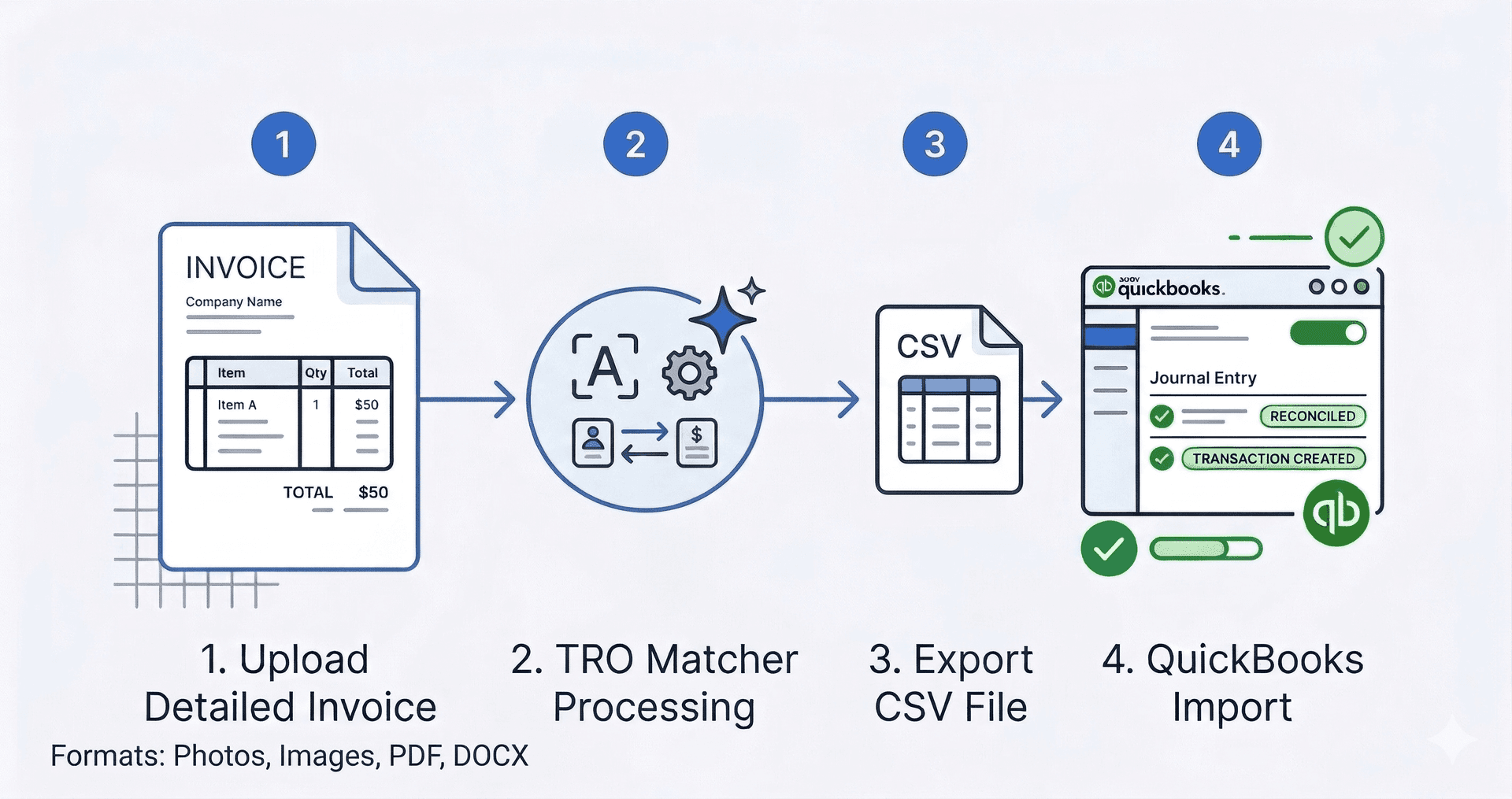
- Import Invoices to QuickBooks — Similar workflow for QuickBooks users
- CSV Import to Any Accounting Software — Universal CSV export guide
- Xero CSV Import Guide (opens in new tab) — Official Xero documentation